
Welcome to Cheerful Plants, a plant care tracking app that helps you keep your houseplants and garden thriving. This guide walks you through the basics: Adding your first plant, watering, and checking reminders. You’ll be up and running in just a few minutes.
For a deeper dive into more features, see the Complete Guide.
1. Navigating the App
The bottom of the screen (also called the “dock”) has four tabs:

| Tab | What It Does |
|---|---|
| My Plants | Your plant collection — browse, search, and quick-water |
| Reminders | Tasks that are due — water, fertilize, prune, and more |
| Add a Plant | Add a new plant to your collection |
| More | Account settings, statistics, help, and other features |
2. Adding Your First Plant
Tap the + icon on the dock to open the Add Plant screen. A photo is the only required element. All the other fields are optional.
Required
- Photo — Tap the photo area to capture or upload a photo.
Plant Details Fields
(all optional)
- Scientific Name — Genus, species, and cultivar (you can add your own or choose from the list provided).
- Common Name
- Nickname — Give your plant a name (e.g., “Kitchen Fern” or “Gertrude”).
- Location — Where the plant lives (e.g., “Living Room”, “Balcony”). Mark it as Indoor or Outdoor.
- Arrangement — Group plants that are all in the same planter (e.g., “Windowsill Trio”).
- Tags — Custom labels to organize your plants (e.g., where you bought it, lighting needs).
- Watering Interval — How often this plant needs water. If you skip this, the app uses your default interval (7 days by default, adjustable in settings) and then calculates an average after the plant is watered twice.
- Date Acquired — When you got the plant.

When you’re done, tap Add Plant to save. Your plant now appears on the My Plants screen.
3. The My Plants Screen
This is your home screen — a grid of all your plants.
What You See
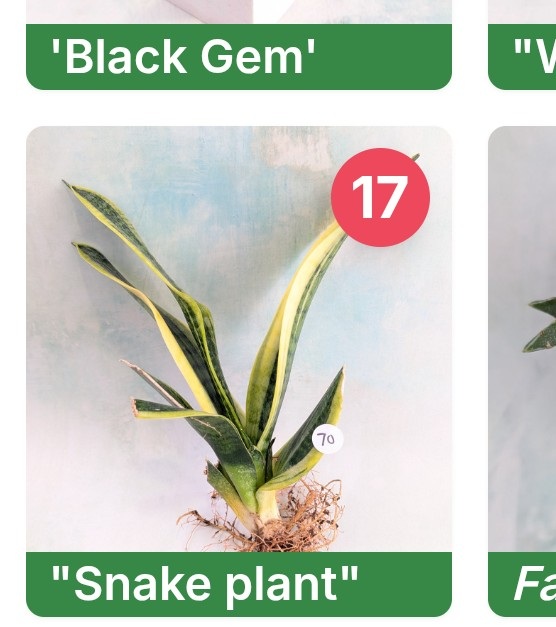
Each plant card shows:
- The plant’s photo
- Its name
- A colored badge showing how many days since the plant was last watered.
Status Badge Colors
| Color | Meaning |
|---|---|
| Red | Overdue or due today |
| Teal | Due soon (1–2 days) |
| Green | Not needed yet (3+ days out) |
| Orange | Overdue but snoozed |

Quick Actions
- Tap a card to open the plant’s detail page.
- Tap the colored badge to instantly record watering. Tap again to undo the watering recorded today.
- Press and hold the colored badge to snooze an overdue watering reminder.
- Use the search bar at the top to find a specific plant by name.
4. Watering a Plant
There are several ways to record watering:
- My Plants Page — Tap the colored badge (with a number) on any plant card. The badge briefly shows a spinner, then updates.
- Reminders Page — Tap the water icon next to any watering task.
- Plant Detail Page — In the Schedule Reminders section tap on the watering can on the watering schedule card.
When you water a plant, the app:
- Records the date and time
- Recalculates when the next watering is due
- Updates the badge color across all screens
- Shows the watering action in the History section of the Plant Details page
Note: If the colored badge on a plant shows “0” on the My Plants page, tapping the badge will undo and delete the last watering action. If a gray arrow shows in place of the watering can on the Reminders or Plant Details page, tapping it will undo and delete the last watering action.
Snoozing
If a plant is due for watering but you want to postpone the reminder, you can snooze it. There are a few ways to snooze a reminder:
- On the My Plants page, press and hold the quick water badge
- On Reminders or Plant Details page, press and hold the watering can icon normally used to water the plant
- On the Plant Details page, tap the schedule card and press “Snooze Reminder”
After any of these actions, you’ll see a new screen pop up. Choose how many days to postpone, then tap Snooze to save. Snoozed plants show an orange badge.
5. Checking Your Reminders
Tap the Reminders tab to see what needs attention. By default, the Reminders page shows all tasks that are overdue or due today.
Timeline Filters
You can use the dropdown menus at the top to change what tasks are shown and how they’re grouped:
| Filter | Shows |
|---|---|
| Due Today | Tasks that are overdue or due now |
| Soon | Tasks due in 1–2 days |
| Not Yet | Tasks due in 3+ days |
| Completed Today | Tasks you’ve already finished today |
| All Upcoming | Everything that isn’t completed |
Completing a Task
Tap the icon on any task card to mark it done. If you change your mind, you can tap the same button to undo it.

Beyond Watering
The Reminders screen also tracks care schedules you’ve set up — fertilizing, pruning, repotting, pest treatment, and custom tasks. You can add these from any plant’s detail page.
6. Exploring a Plant’s Detail Page
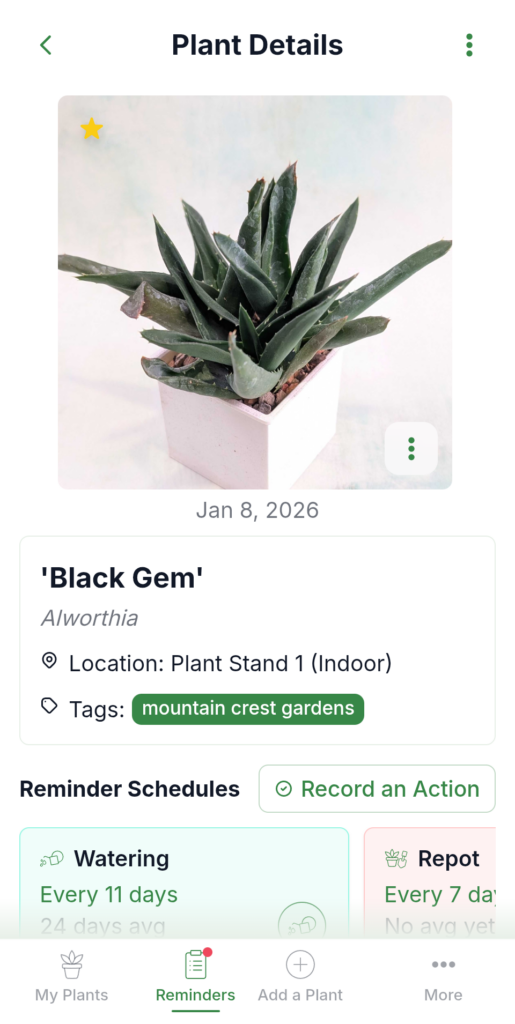
Tap any plant card to open its detail page. Here you’ll find:
- Photo Gallery — Swipe through all photos of this plant. You can add or delete photos as well as change the featured photo by pressing the 3 dots on the image.
- Name and Location — This section displays the plant name, location, arrangement (if applicable) and tags assigned to the plant. Tapping on this section brings up the Plant Editor to make changes.
- Reminder Schedules — By default every plant gets a watering reminder schedule. You can also add reminder schedules for other actions as well (fertilize, prune, etc.).
- Activity History — A timeline of every care event, automatically logged. Tapping on an event allows you to edit the event details.
- Three-Dot Menu — At the top right of the page, this button gives you the option to edit the plant, add a photo, or record an action for the plant.

7. Setting Up Notifications
Enable a daily notification listing the number of plants that need care.
- Tap the More tab.
- Tap Notifications.
- Enable the notification toggle.
- Set your reminder hour and time zone (e.g., 9:00 AM EST).
The app sends one notification per day at your chosen time, with a count of all plants that have due or overdue tasks.
If you don’t see reminders on your phone lock screen or notification center after enabling notifications, make sure your phone has notifications enabled for the Cheerful Plants App.

What’s Next?
Now you know the essentials. As your collection grows, you might want to explore:
- Care Schedules — Set up reminders for fertilizing, pruning, repotting, and more.
- Arrangements — Group plants that live together and water them all at once.
- Tags & Grouping — Organize your plants by location, type, tags, or arrangement.
- Memory Garden — A place for plants that are no longer with you, preserving their care history.
- Statistics — Charts and insights about your care habits.
- Premium — The free plan supports up to 5 plants. Upgrade for unlimited plants.
You can view the Complete Guide for details on each of these sections and more.
Happy growing!